> ## Documentation Index
> Fetch the complete documentation index at: https://docs.memorylake.ai/llms.txt
> Use this file to discover all available pages before exploring further.
# Roles and Permissions
> Grant the right access to the right people — base roles, custom roles, and per-resource scopes
 ## Base Roles
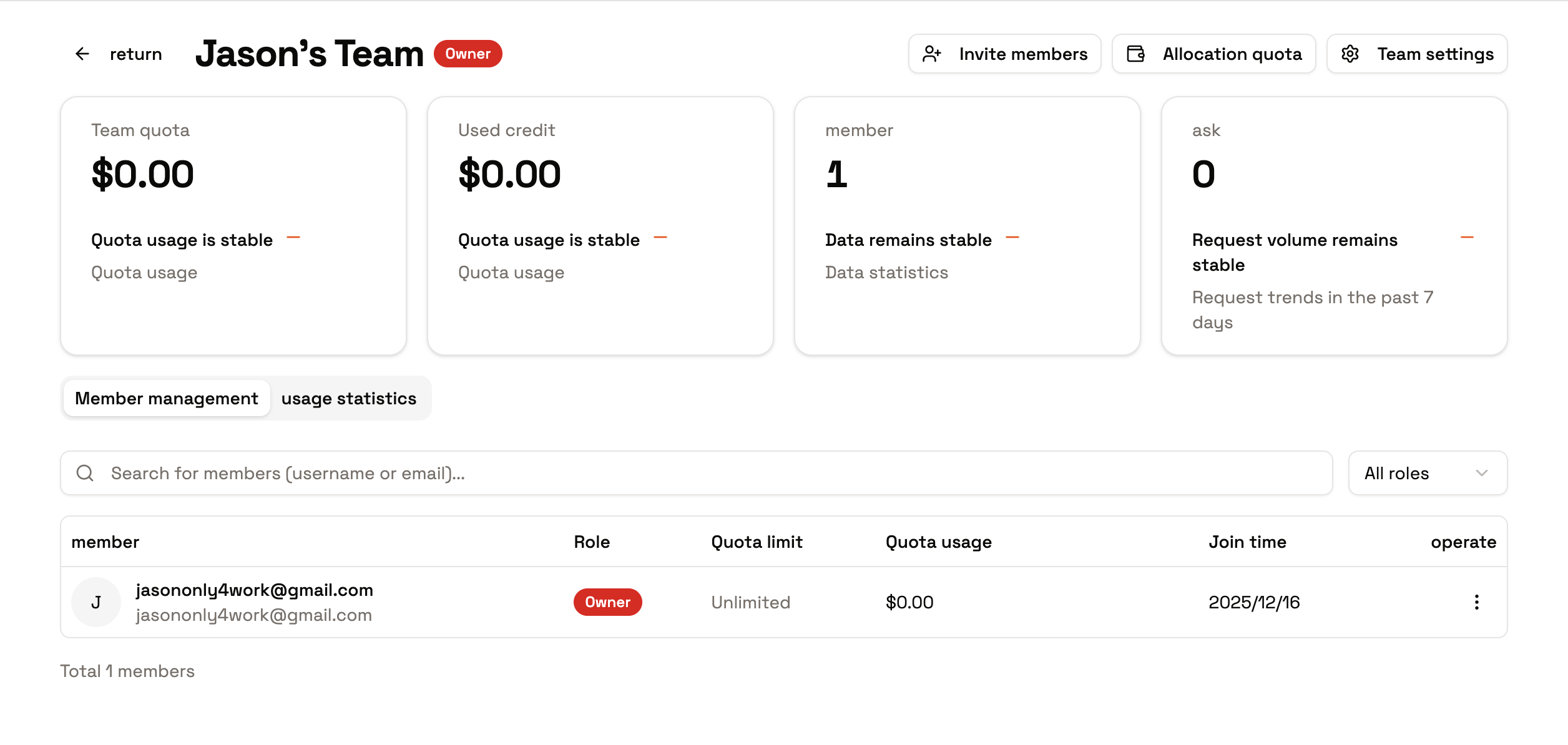
* **Owner**: the creator (or a transferred successor). Can dissolve the team, transfer ownership, allocate quotas, adjust roles, and remove members.
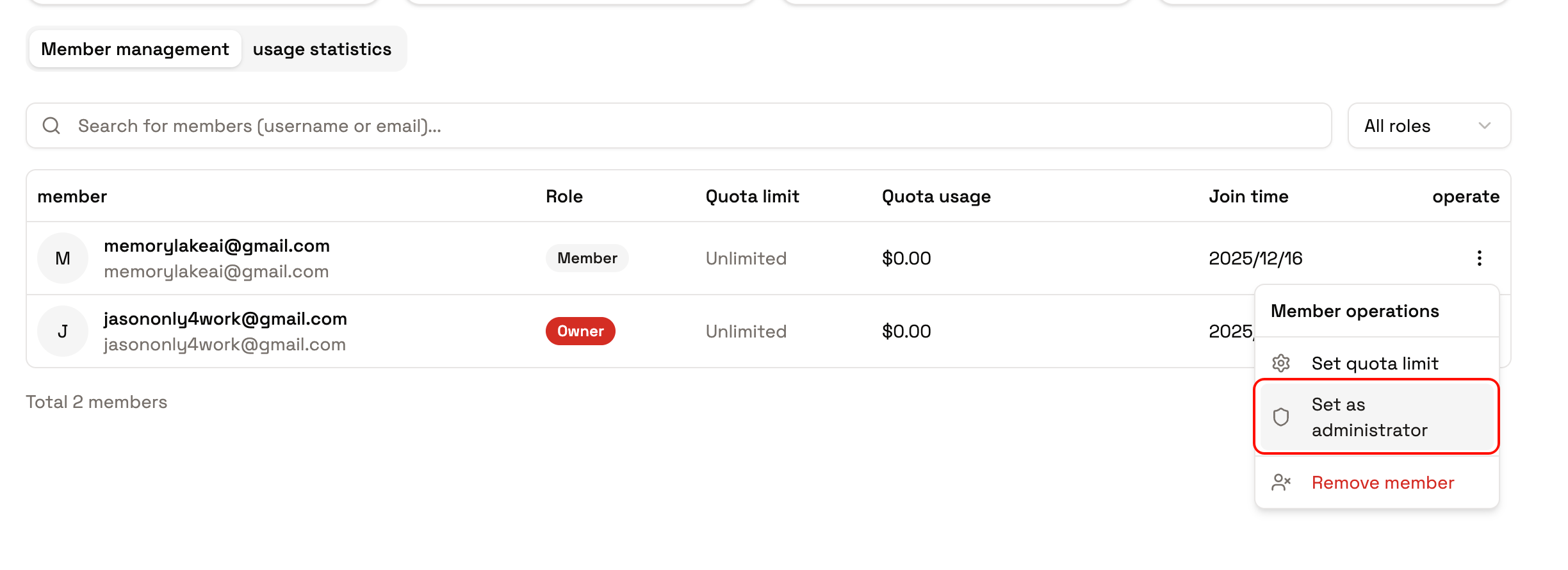
* **Admin**: day-to-day operations. Can invite and remove members, adjust quotas and roles, and manage team resources — but cannot dissolve the team or take ownership.
* **Member**: uses team resources — shared workspaces, memory, and quota — and views information relevant to them. Can leave voluntarily.
## Base Roles
* **Owner**: the creator (or a transferred successor). Can dissolve the team, transfer ownership, allocate quotas, adjust roles, and remove members.
* **Admin**: day-to-day operations. Can invite and remove members, adjust quotas and roles, and manage team resources — but cannot dissolve the team or take ownership.
* **Member**: uses team resources — shared workspaces, memory, and quota — and views information relevant to them. Can leave voluntarily.
 ## Custom Roles
When the three base roles are too coarse, define **custom roles** with exactly the capabilities you need — for example a "Knowledge Curator" who can resolve memory conflicts and manage documents but cannot invite members, or a "Read-only Auditor" for compliance review.
Every grantable capability is listed in the [Permission Reference](/features/team-collaboration/permission-reference), with identifiers (`project:doc_read`, `project:mem_conflict_resolve`, `drive:item_add`, …) and what a member sees when a permission is missing.
## Per-Resource Scopes
Beyond roles, permissions can be scoped to **specific resource instances** — a member can hold `project:read` on one project and not another. Scopable resource types are **workspaces**, **projects**, and **database connections**; granting a workspace-level scope cascades to the projects inside it.
> *Typical use*: a contractor gets access to exactly the "Vendor audit" project in the Operations workspace — everything else stays invisible.
## Available Operations
| Area | What's possible |
| --------------------- | ---------------------------------------------------------------------------------------- |
| Team management | Create, update details, transfer ownership (Owner only), dissolve |
| Members & invitations | Email or link invitations, resend/revoke, role assignment, removal; members may leave |
| Quota allocation | Team totals and per-member allocations; insufficient quota blocks calls immediately |
| Roles & scopes | Base roles, custom roles, and per-resource scopes |
| Statistics | Team-wide usage, member rankings, model usage; members always see their own |
| Space switching | Switch between personal and team context — quota and permissions follow the active space |
## Setting Up a New Team
1. Create the team and complete its details in the console (**Teams → My Teams**).
2. Invite colleagues from the team's **Invites** tab, assigning roles as you go — both inviter and invitee need verified email addresses.
3. Promote core colleagues to Admin; leave others as Member, or define custom roles for finer control.
4. Allocate per-member quotas on the **Members** tab, then have members switch to the team context for their calls.
## Secure Handover
1. Confirm the successor is already a member with an appropriate role.
2. The Owner performs **Transfer Ownership** — the previous Owner is automatically downgraded.
3. Tighten remaining permissions: adjust roles, revoke resource scopes, and disable API keys belonging to departing members.
An API key inherits the permissions of the member who created it. When someone leaves or is downgraded, review and disable their keys — otherwise automation may keep running with their old access.
## Tips
* Check your active space before making calls, so quota is drawn from the intended pool.
* High-risk actions (dissolving the team, transferring ownership, editing others' quotas, removing members) are restricted to authorized roles.
* Prefer removing a permission over relying on convention — see the [Permission Reference](/features/team-collaboration/permission-reference).
* Statistics accumulate from real usage; empty charts on a new team are normal.
## Next Steps
* [Permission Reference](/features/team-collaboration/permission-reference) — every capability, explained
* [Invitations and Access](/features/team-collaboration/invitation-and-access) — the invitation flow in detail
* [Quotas and Usage](/features/team-collaboration/quota-and-usage) — allocation and monitoring
## Custom Roles
When the three base roles are too coarse, define **custom roles** with exactly the capabilities you need — for example a "Knowledge Curator" who can resolve memory conflicts and manage documents but cannot invite members, or a "Read-only Auditor" for compliance review.
Every grantable capability is listed in the [Permission Reference](/features/team-collaboration/permission-reference), with identifiers (`project:doc_read`, `project:mem_conflict_resolve`, `drive:item_add`, …) and what a member sees when a permission is missing.
## Per-Resource Scopes
Beyond roles, permissions can be scoped to **specific resource instances** — a member can hold `project:read` on one project and not another. Scopable resource types are **workspaces**, **projects**, and **database connections**; granting a workspace-level scope cascades to the projects inside it.
> *Typical use*: a contractor gets access to exactly the "Vendor audit" project in the Operations workspace — everything else stays invisible.
## Available Operations
| Area | What's possible |
| --------------------- | ---------------------------------------------------------------------------------------- |
| Team management | Create, update details, transfer ownership (Owner only), dissolve |
| Members & invitations | Email or link invitations, resend/revoke, role assignment, removal; members may leave |
| Quota allocation | Team totals and per-member allocations; insufficient quota blocks calls immediately |
| Roles & scopes | Base roles, custom roles, and per-resource scopes |
| Statistics | Team-wide usage, member rankings, model usage; members always see their own |
| Space switching | Switch between personal and team context — quota and permissions follow the active space |
## Setting Up a New Team
1. Create the team and complete its details in the console (**Teams → My Teams**).
2. Invite colleagues from the team's **Invites** tab, assigning roles as you go — both inviter and invitee need verified email addresses.
3. Promote core colleagues to Admin; leave others as Member, or define custom roles for finer control.
4. Allocate per-member quotas on the **Members** tab, then have members switch to the team context for their calls.
## Secure Handover
1. Confirm the successor is already a member with an appropriate role.
2. The Owner performs **Transfer Ownership** — the previous Owner is automatically downgraded.
3. Tighten remaining permissions: adjust roles, revoke resource scopes, and disable API keys belonging to departing members.
An API key inherits the permissions of the member who created it. When someone leaves or is downgraded, review and disable their keys — otherwise automation may keep running with their old access.
## Tips
* Check your active space before making calls, so quota is drawn from the intended pool.
* High-risk actions (dissolving the team, transferring ownership, editing others' quotas, removing members) are restricted to authorized roles.
* Prefer removing a permission over relying on convention — see the [Permission Reference](/features/team-collaboration/permission-reference).
* Statistics accumulate from real usage; empty charts on a new team are normal.
## Next Steps
* [Permission Reference](/features/team-collaboration/permission-reference) — every capability, explained
* [Invitations and Access](/features/team-collaboration/invitation-and-access) — the invitation flow in detail
* [Quotas and Usage](/features/team-collaboration/quota-and-usage) — allocation and monitoring