

What is Usage and Billing?
Every API call consumes quota and generates a billing record. This guide shows where to see your usage and how charges are calculated.Quota is checked before each request. If your balance is insufficient, the request is rejected. See Limits and Prerequisites for more details.
How Quota Works
Model Router uses a two-phase quota system:- Pre-deduction: before your request is processed, the system checks and reserves quota
- Settlement: after the request completes, you’re charged based on actual usage; failed requests roll back the reservation
You’re only charged for successful requests based on actual token usage.
Where to Look in the Console
All usage and billing views live under Billing in the console sidebar:
In team spaces, team-wide statistics (member rankings, consumption trends, model usage) are on the team’s Stats tab — see Team Collaboration.
Viewing Individual Call Billing
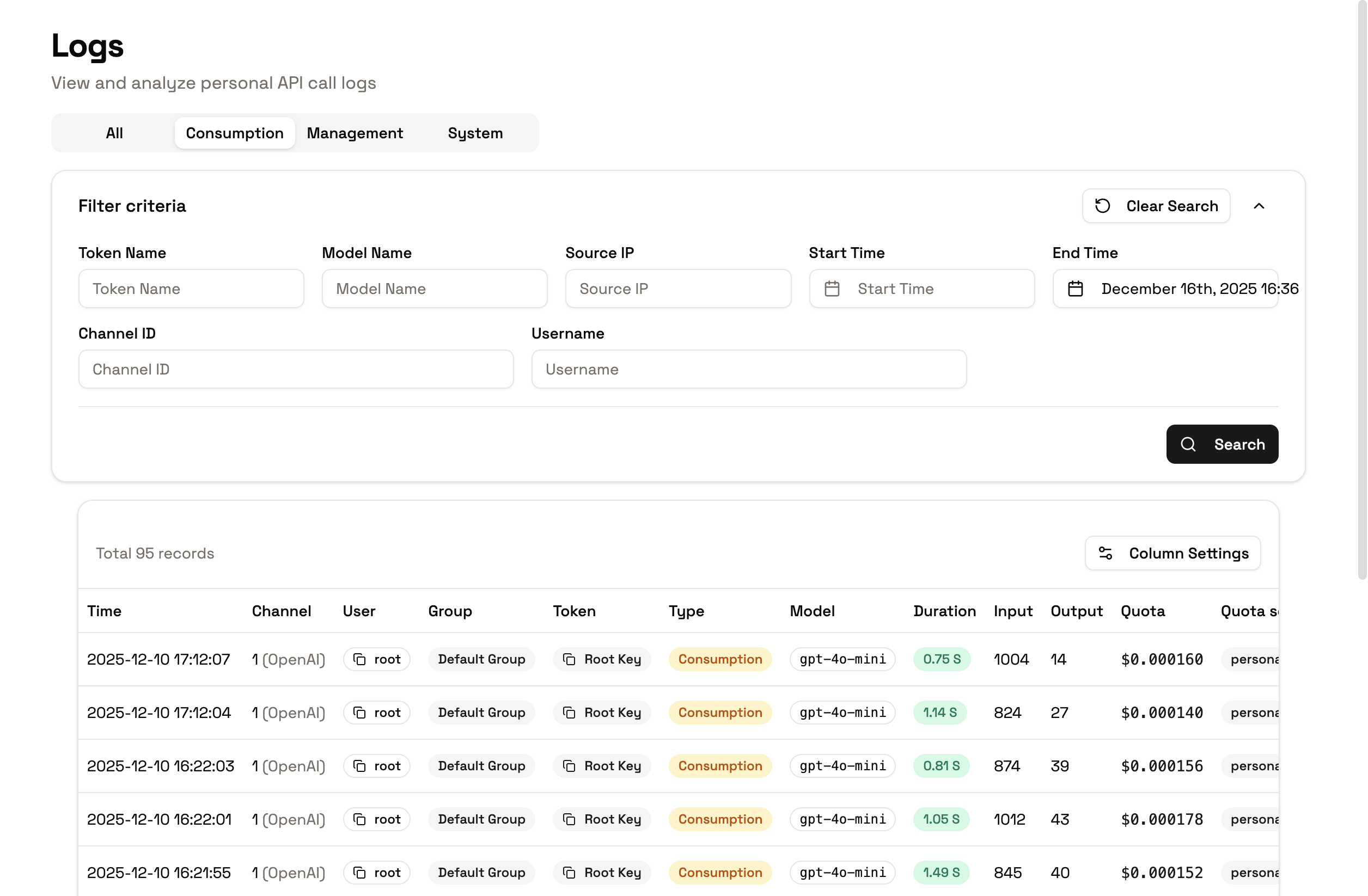
- Open Billing → Logs
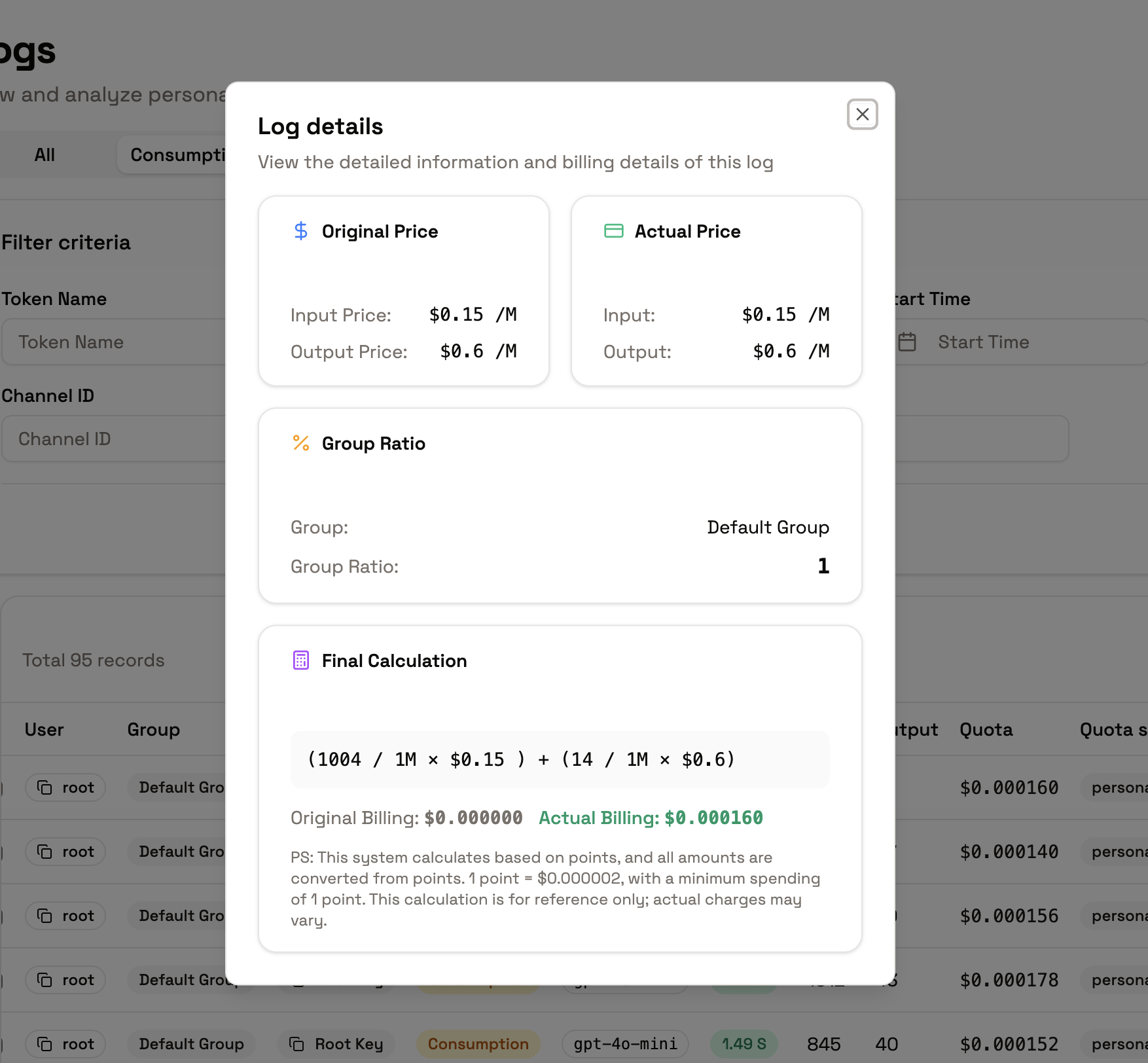
- Click any call to see its details:
- Input/Output pricing: cost per token
- Conversion process: how the charge was calculated
- Actual deducted quota: what was consumed
- Quota source: personal, team, or mixed
Understanding Billing Details
- Input tokens: cost for tokens you send to the model
- Output tokens: cost for tokens the model generates
- Total cost: input + output
- Quota sources: personal quota, shared team quota, or a mix — validated according to your current space context
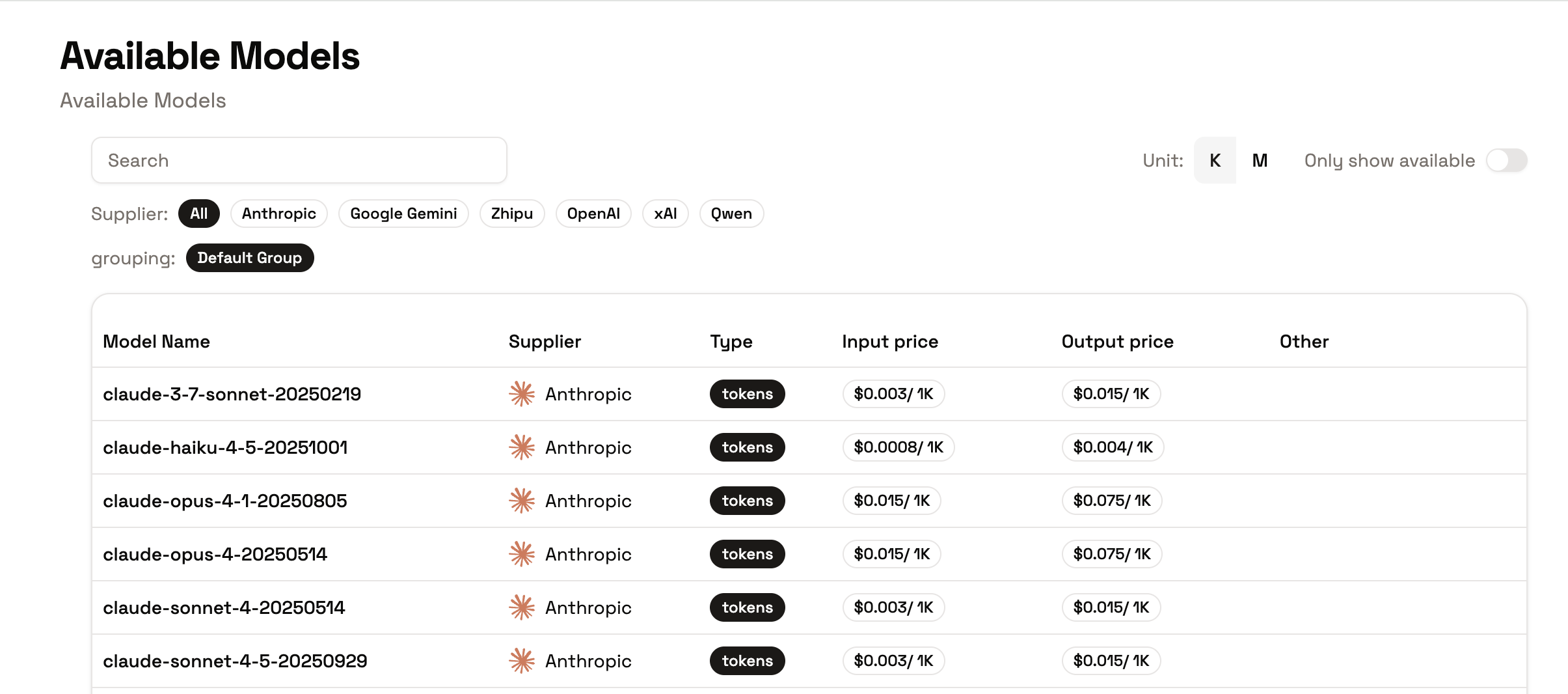
Model Pricing
View per-model pricing on the Available Models page in the console. Pricing shown there is reference metadata; actual charges are calculated at settlement from real usage.Important Notes
- Quota limits: requests are rejected when balance is insufficient — top up in Billing → Credits before sustained workloads.
- Context matters: personal and team contexts draw on different quota pools; check your current space before automating.
- Real-time updates: usage statistics update as you make calls.
Troubleshooting
”Insufficient Quota” Error
- Check your balance in Billing → Overview
- Top up credits, or ask your team admin for a larger member quota
- Verify you’re in the intended space (personal vs. team)
Unexpected Charges
- Open the call in Billing → Logs
- Review input/output token counts and the conversion detail
- Compare against the model’s pricing on the Available Models page