

Use Cases
- Multiple users share the same endpoint and need to control team-wide quotas and allocate them to members.
- Quickly view team and personal usage and rankings to identify and handle anomalies promptly.
- Intercept calls immediately when quotas are insufficient to avoid overruns.
What You Can Do
- Team Quotas: Set or adjust total quotas for the team as an overall consumption limit.
- Member Quotas: Allocate or adjust quotas for individual members, with support for subsequent adjustments. Insufficient quotas will directly intercept calls.
- Usage Visibility: View team usage, member rankings, and personal usage views.
- Context Enforcement: When making calls in the team context, quotas are validated against team/member quotas. In the personal context, quotas are validated against personal quotas.
Quota Calculation and Deduction Logic
- Unlimited Teams: When a team is marked as “unlimited”, it is not truly unlimited. Real-time available quota takes the team owner’s current balance, while cumulative usage is still recorded on the team side.
- Limited Teams: Real-time available quota takes the minimum of “team remaining quota” and “owner’s current balance” to prevent the team from exceeding the limit or the owner’s balance.
- Personal Space: In the personal context, personal quota and usage are used directly.
- Pre-deduction and Rollback: Requests are validated and pre-deducted first. After successful return, the deduction is applied. Failures will roll back the pre-deduction to ensure quota accuracy.
- Behavior After Exhaustion: Insufficient quota at any level (personal, team, or owner balance) will directly reject the request to prevent overruns.
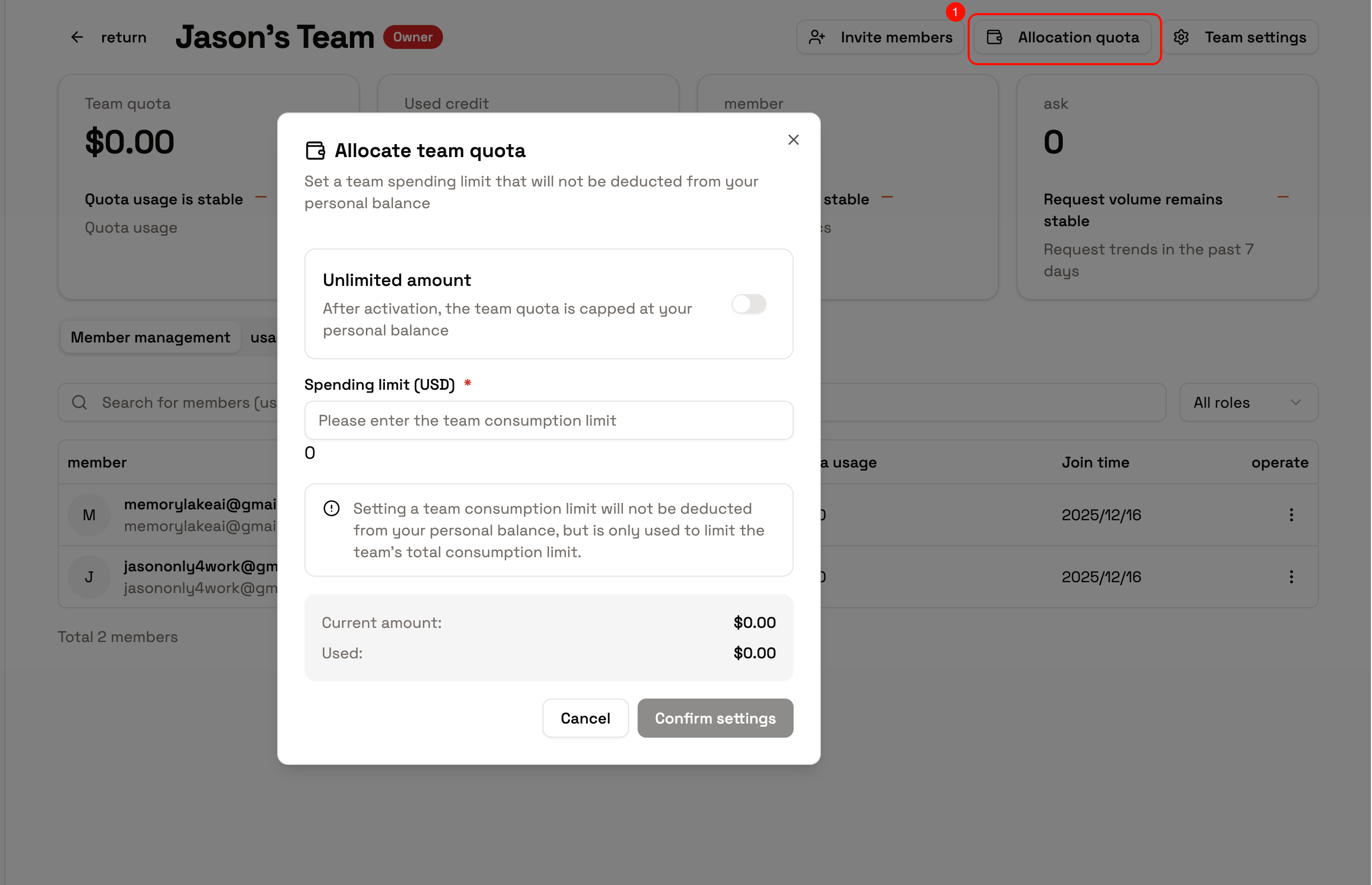
How to Allocate and Adjust
- In the “Members” page of team details, find the target member.
- Set or adjust the member’s quota, which takes effect immediately after saving.
- If overall control is needed, first set the team total quota, then subdivide at the member level.
- After adjustment, return to the statistics view to confirm if usage and rankings are normal.
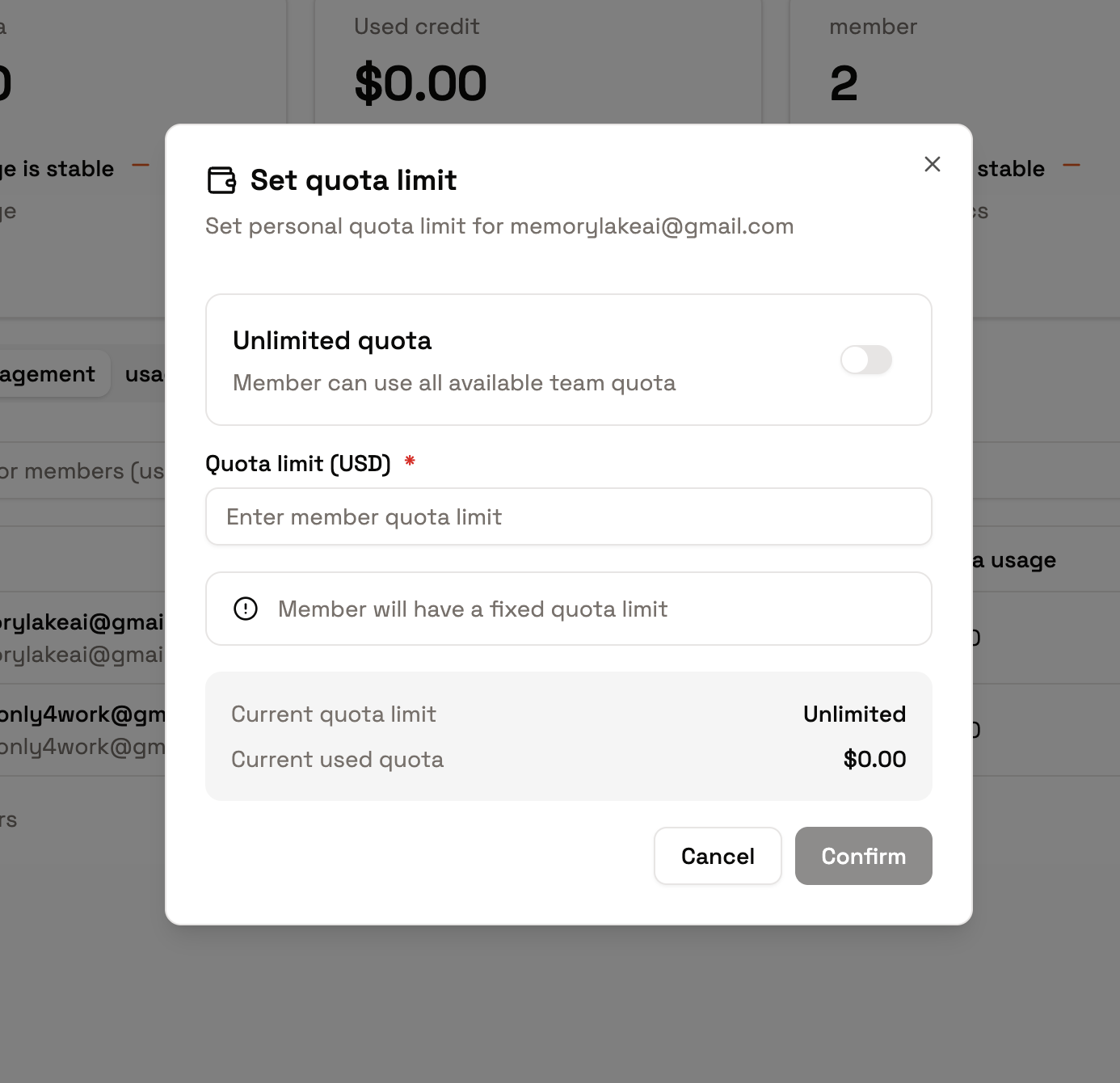
View Usage and Rankings
- Team Overview: View team period usage, trends, and distribution in “Usage/Statistics”.
- Member Rankings: View member usage rankings in the same section to easily identify abnormal consumption.
- Personal View: Members can view their own usage to confirm if they’re approaching quota limits.
Tips
- Quota and status validation take effect in real time. Insufficient quotas will directly reject calls. Reserve a safety margin when necessary.
- If member usage is abnormal, first tighten quotas or adjust roles, then investigate the source of calls.
- Switch context before making calls to ensure quota validation is performed under the correct identity.
Next Steps
- If you need to combine invitations, roles, and lifecycle management, continue reading the relevant sections.
- Before migrating to production, use test tokens to verify the team and member quota enforcement logic, then switch to production traffic.