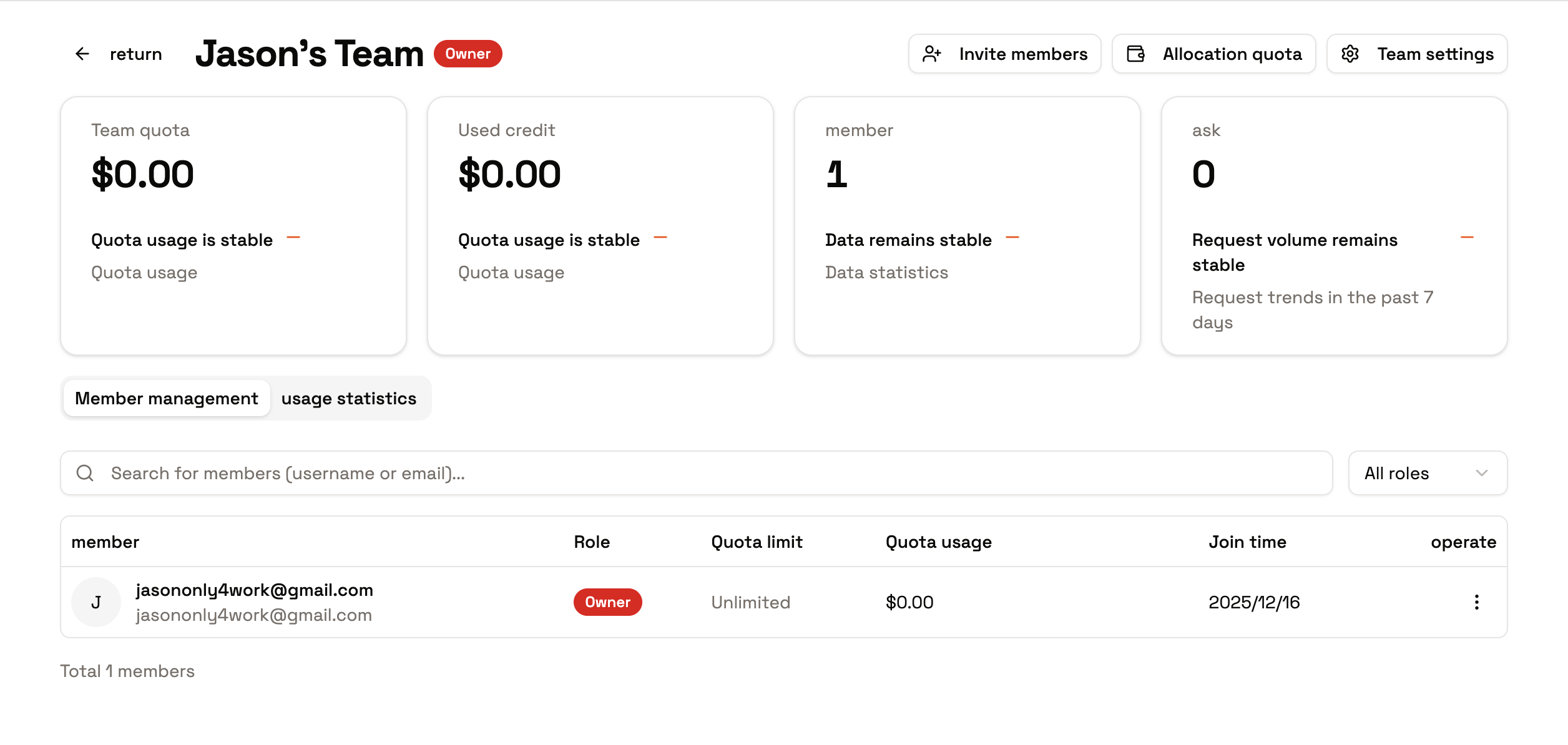
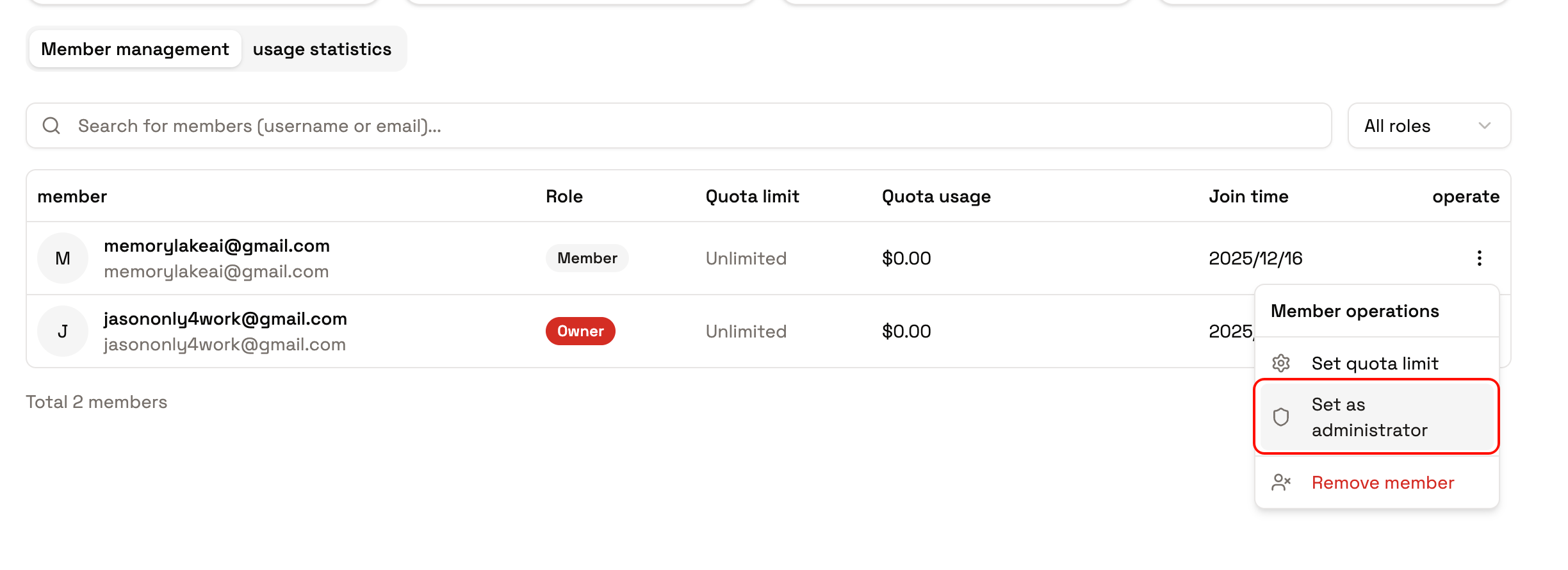
Owner: the creator (or a transferred successor). Can dissolve the team, transfer ownership, allocate quotas, adjust roles, and remove members.
Admin: day-to-day operations. Can invite and remove members, adjust quotas and roles, and manage team resources — but cannot dissolve the team or take ownership.
Member: uses team resources — shared workspaces, memory, and quota — and views information relevant to them. Can leave voluntarily.
When the three base roles are too coarse, define custom roles with exactly the capabilities you need — for example a “Knowledge Curator” who can resolve memory conflicts and manage documents but cannot invite members, or a “Read-only Auditor” for compliance review.Every grantable capability is listed in the Permission Reference, with identifiers (project:doc_read, project:mem_conflict_resolve, drive:item_add, …) and what a member sees when a permission is missing.
Beyond roles, permissions can be scoped to specific resource instances — a member can hold project:read on one project and not another. Scopable resource types are workspaces, projects, and database connections; granting a workspace-level scope cascades to the projects inside it.
Typical use: a contractor gets access to exactly the “Vendor audit” project in the Operations workspace — everything else stays invisible.
Confirm the successor is already a member with an appropriate role.
The Owner performs Transfer Ownership — the previous Owner is automatically downgraded.
Tighten remaining permissions: adjust roles, revoke resource scopes, and disable API keys belonging to departing members.
An API key inherits the permissions of the member who created it. When someone leaves or is downgraded, review and disable their keys — otherwise automation may keep running with their old access.